PhreeqcI--A GUI for the Geochemical Program PHREEQC
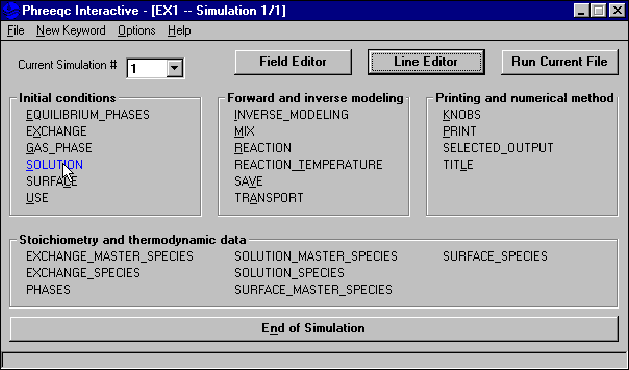
Figure 1.--Main screen of PhreeqcI.
The main screen for PhreeqcI has a button for each keyword (fig. 1) that produces an input screen for the keyword data block. After data have been entered in the screen for a keyword data block, the data are stored in a temporary copy of the input data file and the main screen reappears. END keywords can be added with the "End of Simulation" button that spans the main screen at the bottom (fig. 1). Individual keyword data blocks may be retrieved and edited through the "Field Editor" button on the main screen (fig. 1). The entire input data set may be edited with a user-specified editor (see Options below) through the "Line Editor" button (fig. 1). Once all of the keywords for all the simulations are entered, PHREEQC can be run with the "Run Current File" button. The top border of the main screen lists the name of the current input file and lists the number of simulations in the file (see Reaction-Path Modeling above).
Any item on a screen that has an underlined letter can be invoked through the keyboard by pressing the "Alt" key and the letter key simultaneously.